
RecBuddy
Automated reconciliation tool for accounts Payable, Receivable and Banking.
What is RecBuddy?
RecBuddy enables accountants to certify transactions and rectify discrepancies that occur in a ledger. Eliminate manual comparison of data from bank and credit card statements and invoices.
RecBuddy automatically applies standardised templates and preconfigured rules to lists of transactions to quickly identify discrepancies and notify relevant users regardless of the account, balance sheet, banking or profit and loss etc. Justify transaction approvals or rejections with supporting documentation to enhance reconciliation validity.
What processes does RecBuddy automate and how?
Accounts Receivable
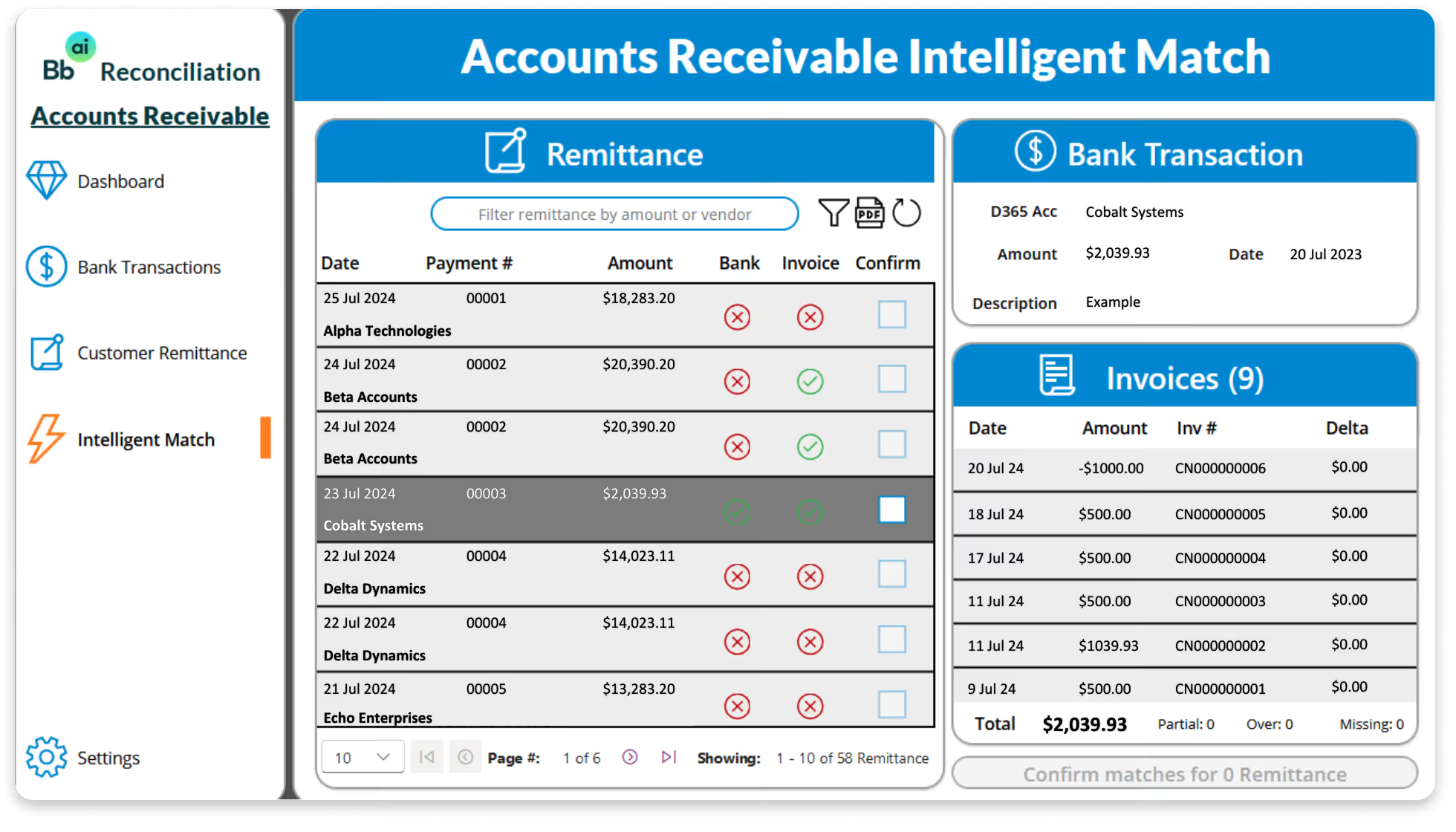
Recbuddy automates the process of applying receipts for Bills within your ERP/Finance System.
Currently when a customer pays you, they provide a payment advice to advise you which bills they are paying. A manual process is triggered where a person looks at that advice, finds the payment in your banking records and applies that payment to the bill.
This process is time consuming and often creates errors. Additionally, if you do not apply the payments on time, then often customers will be asked why bills have not been paid, even though they have. This will create disgruntled customers. Finally, by applying payments on time to bills, this ensures your accounting records are correct for month end.
With RecBuddy
Recbuddy digitises payment advices received from a customer in any format. Extracting the relevant information for the bill and payment to be found.
Once the data is extracted a matching rule is applied to find the bill/bills the payment was for and the payment itself on the bank transaction.
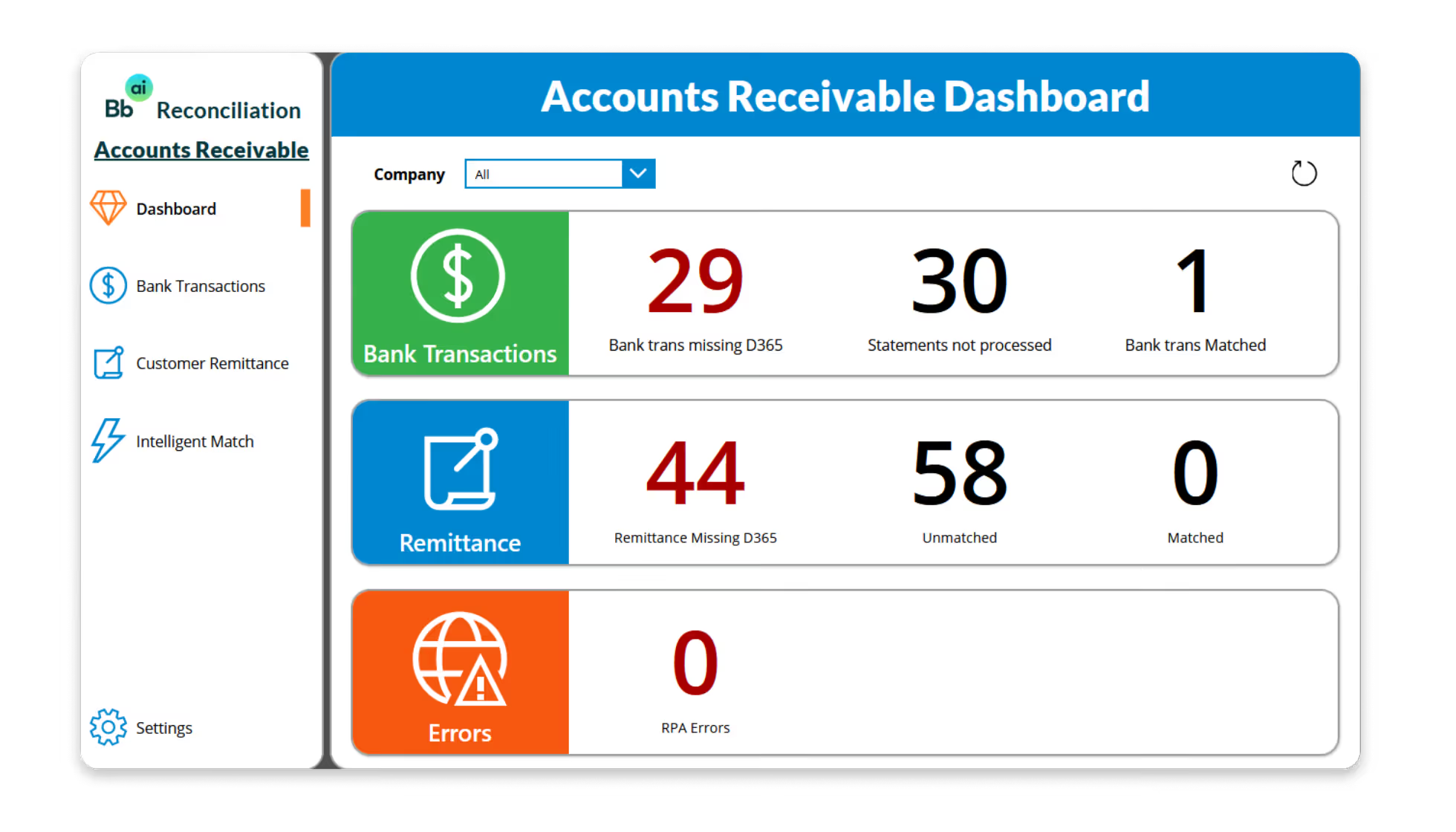
If the matches are found, payments will be applied against the bill automatically in your ERP/Finance System, and the bank transaction will be cleared.
Partial payments and credit notes are catered for.
Potential matches, where the rules have not been followed will be flagged workflowing them to a human for intervention and investigation.
Accounts Payable
Recbuddy automates the process of applying payments for Invoices within your ERP/Finance System.
Currently when you pay a supplier, you will either provide the supplier a payment advice or manually note what the payment was for. A human will wait until the payment appears in the bank statement, and then apply the payment against the invoice/invoices that it applies to.
This process is manual, and often prone to error. If not completed in a timely manner, it could cause double payment of invoices, and errors in your accounting records.
With RecBuddy
Recbuddy automatically reads the bank statement feeds. Once it finds an outgoing payment transaction, it will apply matching rules and find the relevant invoices that the payment was for.
Recbuddy will dive into your ERP/Finance System and look for the electronic payment advice or payments completed within a data range.
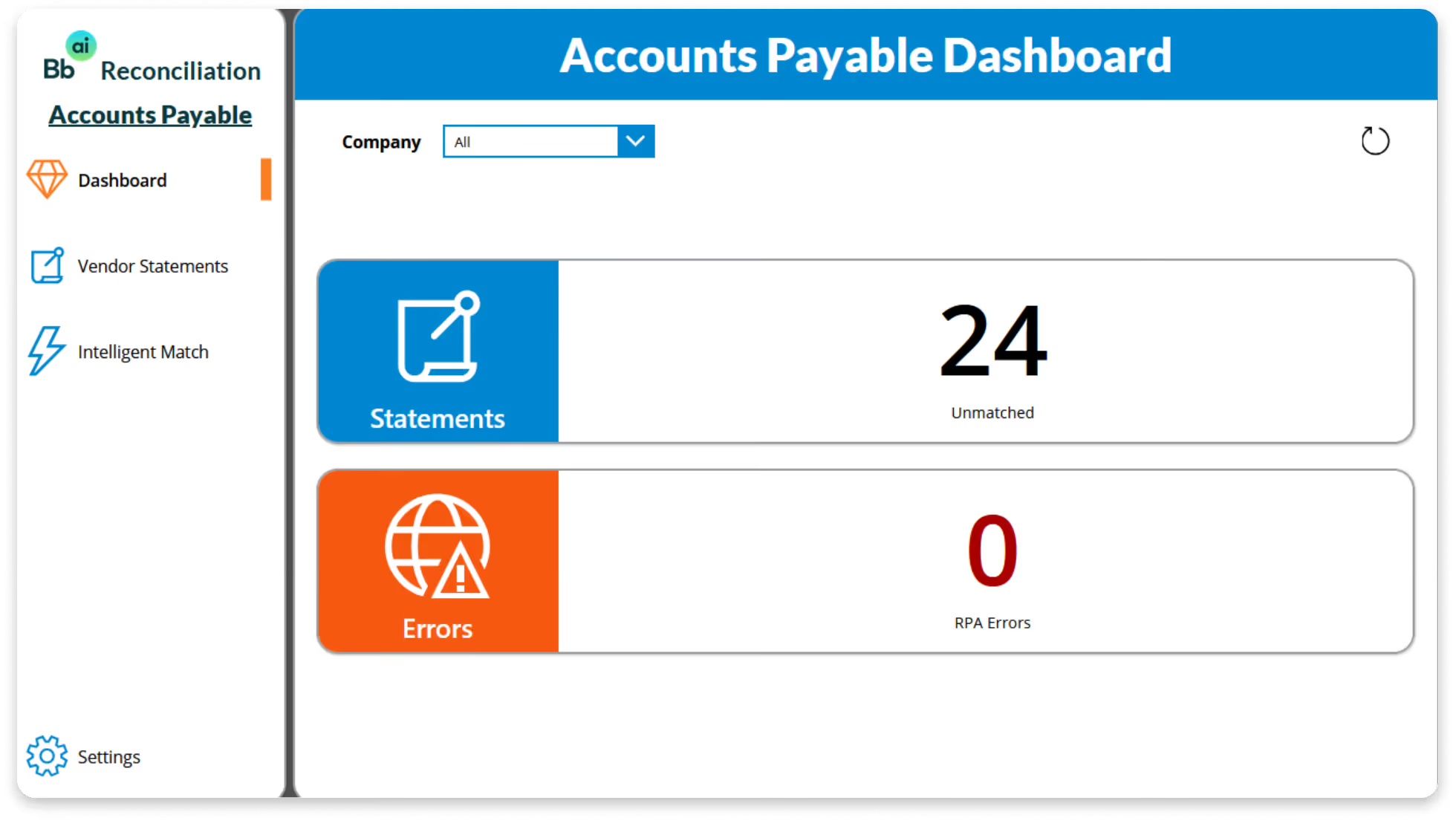
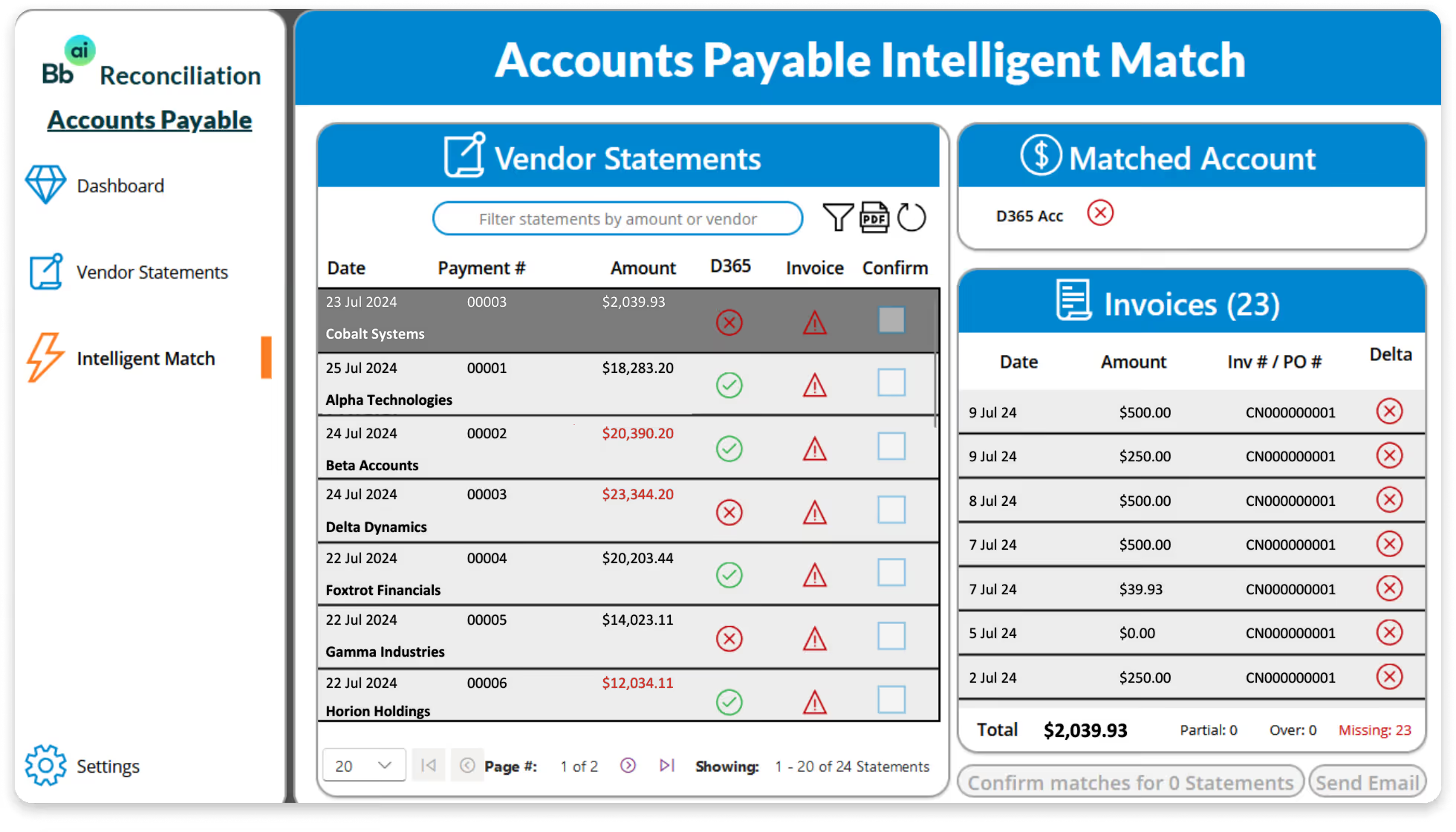
If the matches are found, payments will be applied against the bill automatically in your ERP/Finance System, and the bank transaction will be cleared.
Partial payments and credit notes are catered for.
Potential matches, where the rules have not been followed will be flagged workflowing them to a human for intervention and investigation.
Other Transactions
Recbuddy automates the posting of transactions that appear in the bank statement into your ERP/Finance System.
Currently for transactions that do not come from AR or AP. Such as payroll, bank fees, corporate card, direct debit, are manually investigated and then posted into the ERP/Finance System.
This process is manual, time consuming, and error prone. Additionally, this process can cause accounting records to be incorrect at month end.
With RecBuddy
Recbuddy is configured with rules that allow for automated posting.
Rules can use various rule types such as date range, amount and text match.
RecBuddy analyses the bank statement
If the transactions match, RecBuddy applies the rules to each transaction in the bank statement.
RecBuddy will automatically create a posting in your ERP/Finance System.
Partial matches will be sent for manual intervention and investigation.
Designed to run within your existing environment


Let's Connect
Whether you're just starting to explore AI, automation and data solutions or already have initiatives underway, we'd love to talk.


