
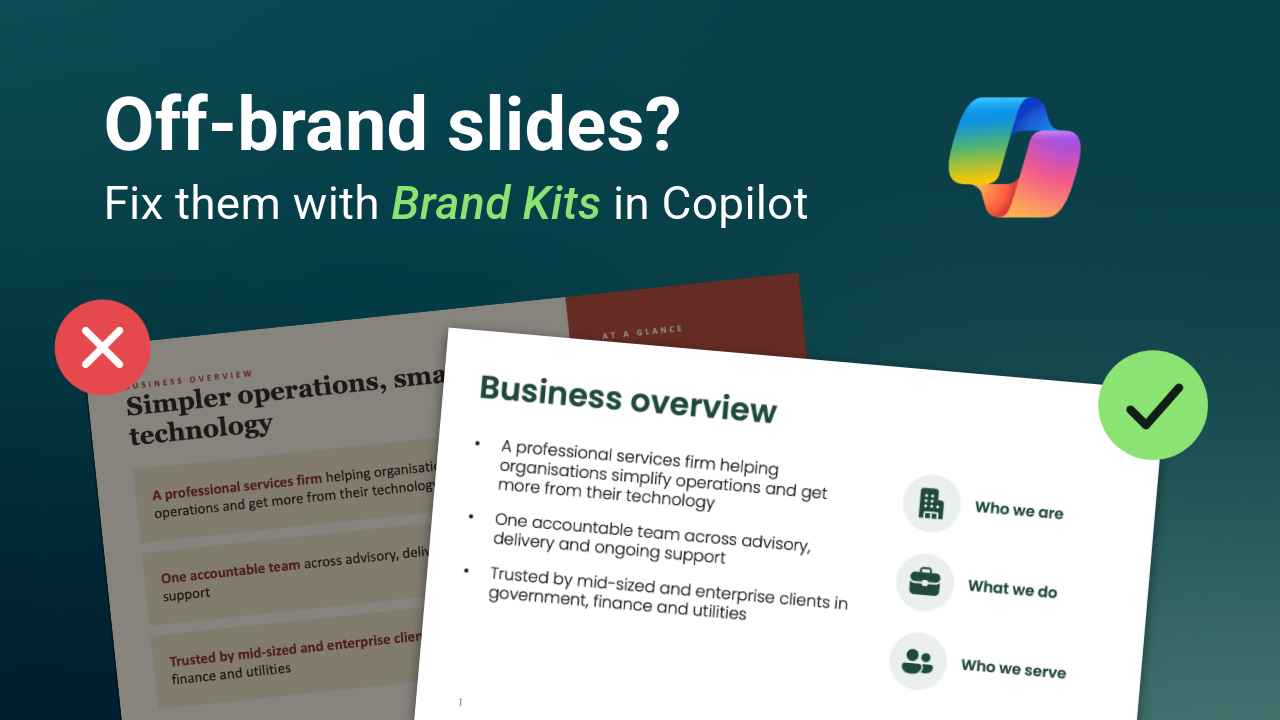
If your team has asked Copilot to draft a presentation, you've probably seen this happen. What comes back is close, but it doesn't look like your organisation. The fonts are wrong, the colours are slightly off, and the logo isn't quite right. Someone then spends more time fixing the slides than planning what goes on them.
In September, Microsoft rolled out brand kits for Copilot. A brand kit gives Copilot your logos, colours, fonts, template and brand voice, so it can build presentations that look and sound like your organisation from the first draft. Many organisations haven't set one up yet.
This guide walks through the setup step by step. You can also watch the full walkthrough in the video above.
Why it matters
Out of the box, Copilot designs with its own defaults: its own fonts, its own colours and its own interpretation of your branding. Over time, that inconsistency affects how people see your organisation. It also creates extra work, with marketing and communications teams fixing slides when they could be building the brand.
A brand kit addresses this at the source. It works like a simplified version of your brand guidelines that Copilot follows every time it designs something.
Before you start
You'll need two things in place:
- A Microsoft 365 Copilot Premium licence. Anyone on your team who wants to use the brand kit in PowerPoint will also need the Premium licence.
- Brand manager access. Your IT team needs to grant this so you can create, manage and publish the kit.
Step 1: Create your brand kit
Brand kits currently aren't available in the Copilot app, so open the web version of Copilot in your browser. From there:
- Click Apps and more and go to Create.
- Select More, then Brand kits.
- Click New brand kit and give it a clear name.
Step 2: Add your logos and colours
Upload your logos first. Then add your brand colours using their exact hex codes, so Copilot uses the precise shades from your brand guidelines.
Step 3: Add your fonts and PowerPoint template
Choose or upload your brand fonts. Then upload the most important asset in the kit: your PowerPoint template. Copilot builds new decks on this template, so make sure it's your current, approved version.
Two things help Copilot use the template well:
- Add rules in the notes of each slide. A short note explaining what each layout is for helps Copilot choose the right slide for the right content.
- Decide on strict brand adherence. Turning this on when you upload the template means Copilot will only use your approved layouts and won't create new ones. If you'd prefer more flexibility, leave it off.
Step 4: Add approved images and your brand voice
Upload a set of approved images and icons, so Copilot uses your visual library instead of generic stock imagery.
Then describe your brand voice. Cover how your organisation sounds, and just as importantly, what it would never say. Clear rules work better than broad descriptions.
Step 5: Add skills
Skills are reusable instructions for presentation tasks your team does regularly, such as preparing a Q&A section at the end of a deck or reviewing a presentation against your brand framework. Once added to the brand kit, they're available to everyone in PowerPoint without each person setting them up individually.
Step 6: Test, then publish
Before publishing, test the kit with a few different kinds of presentations, such as a client presentation, an internal budget meeting and a proposal. Check that each one looks on brand. When everything looks right, click Publish to make the kit available to your team.
Using the brand kit in PowerPoint
Once the kit is published, your team can open PowerPoint, ask Copilot for a presentation and select the brand kit. The first draft comes out on brand, with less back and forth and more confidence that the organisation is represented accurately, both internally and externally.
Three tips for getting the most from your brand kit
- Use your current template. Copilot can only be as up to date as the template you give it.
- Write your brand voice as clear rules. Specific instructions are easier for Copilot to follow than general descriptions.
- Show your team how to prompt with context. Including the audience, the goal and the key points in a prompt gives Copilot what it needs to build a strong presentation.
The bigger picture
A brand kit is one part of a broader question: are your AI tools set up to work the way your organisation does? The same principles apply across other AI tools, from the information they can access to the standards they follow.
Blackbook AI helps organisations set up and get more from the AI tools they already use.